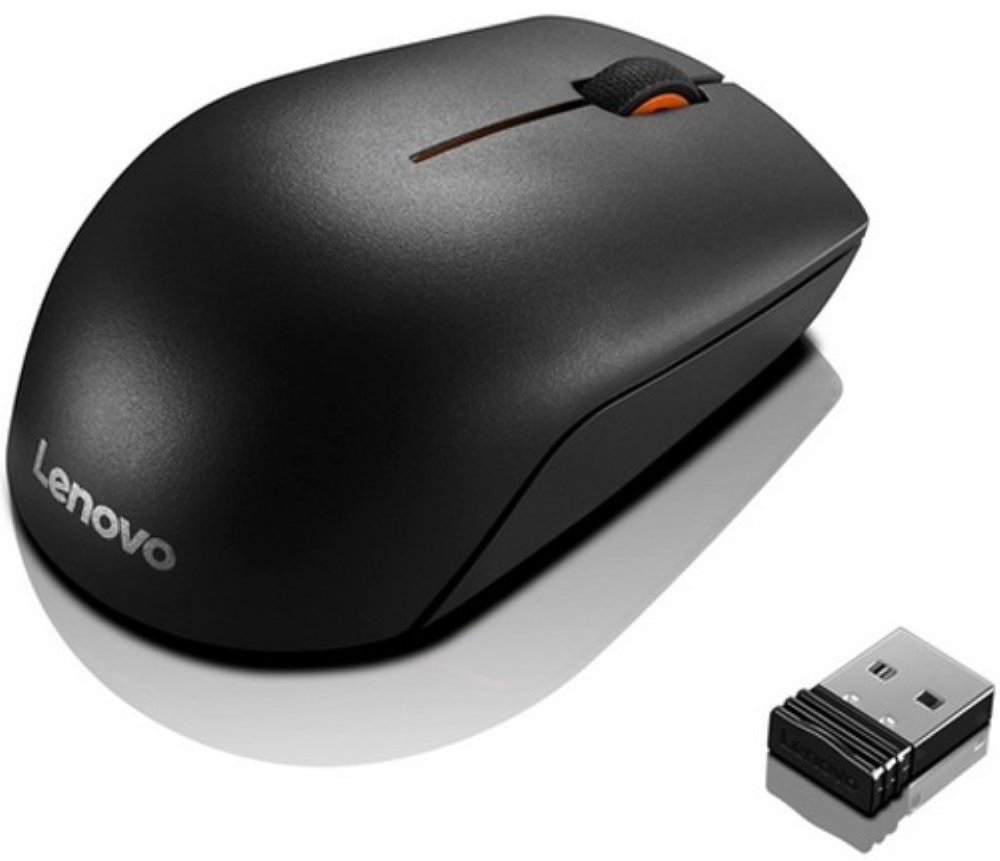
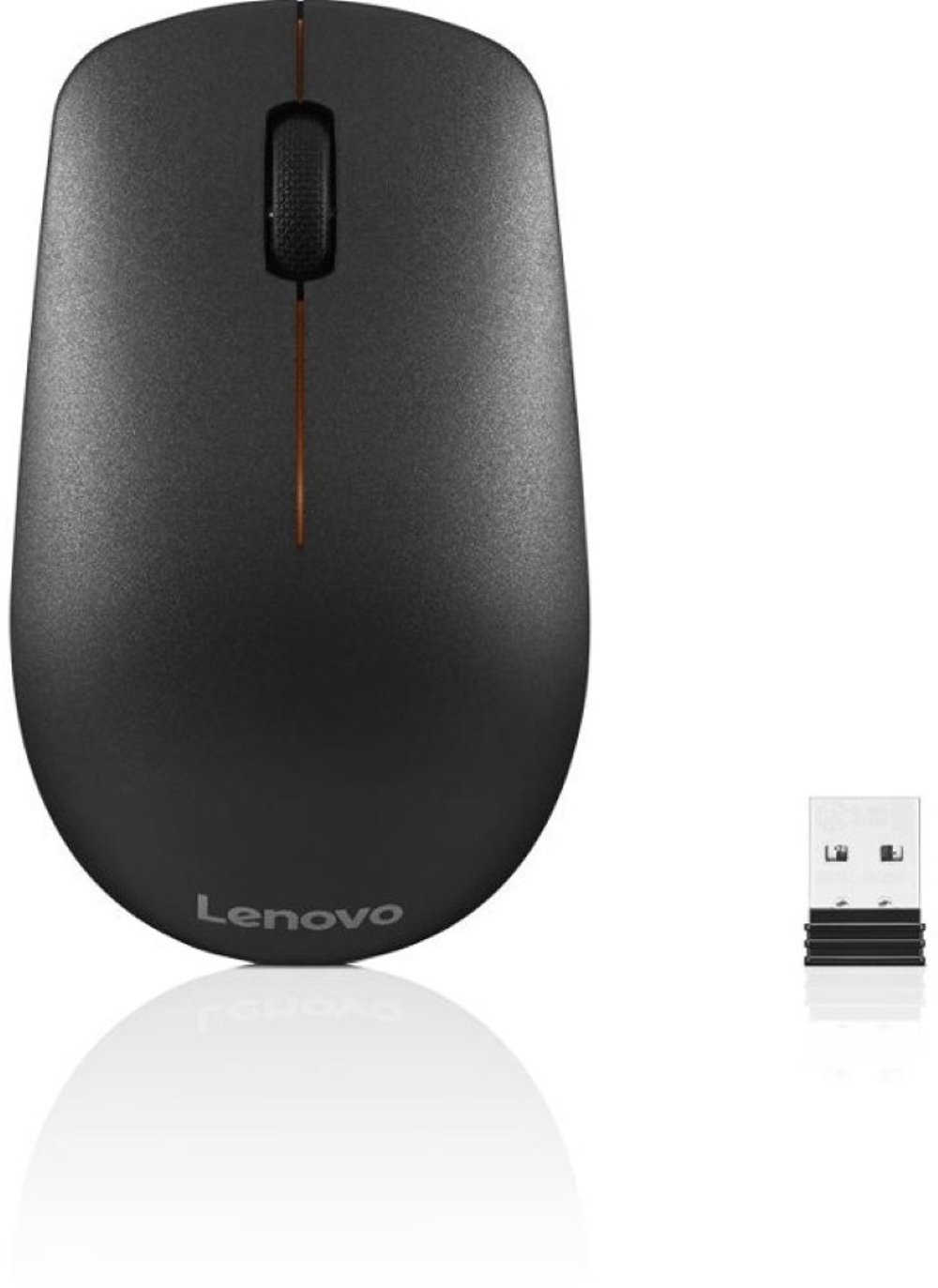
USB mice are computer pointing devices that connect through a USB cable or a small wireless receiver plugged into a computer’s USB port. They give you familiar control over the cursor for opening files, selecting text, moving through spreadsheets, and navigating websites. A wired USB mouse draws power from the computer, so it doesn’t need separate batteries or charging. A wireless USB mouse communicates with its USB receiver and typically uses replaceable batteries or a rechargeable battery, depending on its design. Both styles can serve a desktop computer or laptop well; the difference often comes down to how you like your workspace to feel. A corded connection keeps the mouse ready for use at a permanent desk, while a wireless connection leaves more room to move without a cable crossing your work surface. The connector matters, too. USB-A plugs fit the familiar rectangular ports found on many computers, while USB-C plugs fit smaller, reversible ports. A compatible adapter may let you connect one type to the other, but it’s worth accounting for the ports already occupied by a keyboard, external drive, or other accessories. Many USB mice offer basic plug-and-play operation, allowing standard pointing, clicking, and scrolling without a separate software installation. Extra functions, such as custom button assignments or adjustable lighting, may require software that supports your operating system. A mouse that uses a wireless USB receiver isn’t necessarily a Bluetooth mouse: receiver-based models need their receiver connected, while Bluetooth models connect through a computer’s Bluetooth capability. Some designs support both methods. For a shared household computer, a straightforward connection can make it easier for different family members to sit down and get started. For a dedicated workstation, connection type, cable reach, and compatibility help determine how naturally the mouse fits alongside the rest of your setup.
The shape and construction of a USB mouse affect how it feels through a full afternoon of work, not just the first few clicks. Most have molded plastic housings, with some designs adding textured sides, rubberized grips, or smooth finishes that feel different against your palm and fingertips. A compact mouse slips easily into a laptop bag and suits smaller work surfaces, but a larger body may provide more support for someone who rests most of their hand on the mouse. Low-profile shapes can suit a fingertip grip, while taller, rounded shapes give the palm more contact. These are preferences rather than fixed rules, and hand size alone doesn’t determine the best fit. Button placement, weight, and the effort needed to click also influence comfort. An ambidextrous shape can work well at a shared desk, though side buttons may still favor one hand. Contoured and vertical designs change the position of the hand and wrist; comfort depends on the individual and the surrounding desk setup. Keeping the mouse close to the keyboard and at a comfortable height can help you avoid reaching across the desk for every movement. Optical sensors track movement using light, and tracking performance varies with the surface beneath them. A clean mouse pad gives many mice a more consistent surface than reflective glass or an uneven tabletop. Sensor sensitivity is often expressed in dots per inch, or DPI. Higher settings generally move the pointer farther for the same physical movement, while lower settings can make small adjustments easier to control. Adjustable sensitivity can be useful when moving between detailed work and a large display. Durability also depends on details such as sturdy buttons, a well-supported cable connection, and secure battery covers. For everyday care, disconnect or switch off the mouse before cleaning, wipe its exterior with a soft cloth following the manufacturer’s instructions, and keep liquid away from openings. Clear dust from around the sensor and avoid pulling a wired mouse by its cord. With a wireless design, keeping the receiver secure during travel helps protect a small part that’s essential to the connection.
Different routines call for different combinations of these features. At a home office desk, a comfortable scroll wheel and well-placed buttons can make long documents, email, and scheduling tasks feel more manageable. A wheel with distinct steps helps with controlled scrolling, while some designs offer faster scrolling for lengthy pages. Side buttons may support common actions such as moving backward and forward through a browser, and programmable controls can put frequently used commands within reach when compatible software allows it. Students might appreciate a simple mouse that moves easily between a study desk and a laptop, especially for selecting passages, arranging presentation slides, or working through online assignments. For photo editing, design work, or spreadsheets with tightly packed cells, predictable tracking and easy sensitivity adjustment can matter more than decorative features. Gaming-focused USB mice may emphasize responsive sensors, customizable buttons, and lightweight construction, but fit and control remain important whether you’re playing for a few minutes or settling into a longer session. Wireless designs bring flexibility to small desks and shared tables, while wired designs suit people who prefer not to manage battery life. For work calls, online classes, or multiplayer conversations, USB Headsets can complement a mouse-based setup by adding a microphone and personal audio; make room for both connections if they each need a USB port. In a quiet shared room, quieter-click designs can also be worth considering, since button sound varies from mouse to mouse. A USB mouse can make a practical gift for a student, remote worker, or someone setting up a first computer, particularly when its connection matches the recipient’s device and its shape suits their preferred hand. The most useful choice feels like a natural part of the workspace: easy to connect, comfortable to hold, and suited to the tasks that fill your day.
Read More